Textured Black and Matte Black in Alight Motion: Complete Guide About These Effects.
Flat and boring background visuals often look dull and fail to capture attention. A lack of focus on the main elements can also weaken the overall impact. Using these effects can transform plain content into polished edits while enhancing contrast for a cinematic look.
Textured black is one of the hottest visual styles in modern editing, especially for Alight Motion creators. Users can create cinematic intros and dramatic transitions with ease, while also benefiting from sleek motion graphics. The textured black effect instantly adds depth, dimension, and a premium feel to your visuals.
A matte black effect refers to a finish or appearance that is black in color but non-reflective, flat, and smooth, without any shine or gloss. It absorbs light instead of reflecting it, creating a sleek, modern, understated look.
What Is Textured Black in Alight Motion?
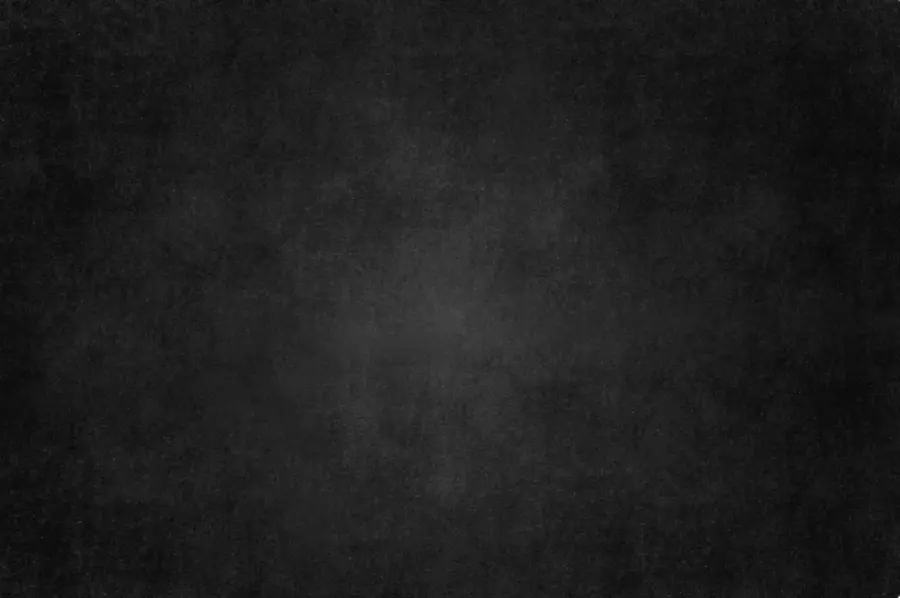
This effect refers to dark layers that include grain, gradients, patterns, shadows, or material-like surfaces. Instead of a flat tone, textured black gives your visuals depth — similar to leather, metal, fabric, brushed surfaces, or grainy digital noise.
Creators use black texture backgrounds for:
- Cinematic depth behind titles or logos
- Smooth transitions
- Layered backgrounds in aesthetic edits
- High-contrast typography
- Dramatic effects in reels and intros
It’s richer and more dynamic than a plain black matte background.
How to Use Texture & Matte Black Effects in Alight Motion
These effects help you make your edits look cleaner, deeper, and more professional.
Each effect serves a different purpose:
- Black Matte effects are best for clean, flat, non-reflective visuals that make text and objects stand out.
- Texture Black effects are great for adding depth, movement, and cinematic detail.
- Black matte color sprays and gradients help you create motion, energy, and smooth transitions.
Below, you’ll find each effect explained clearly, what it is used for, and how you can apply it in your projects.
1. Matte Black Paint Effect (Clean Base Layer)
Purpose: Creates a smooth, flat, professional matte black effect that works flawlessly behind elements.
How to Use:
- Add a solid layer and apply a matte black shade.
- Adjust opacity for soft or bold contrast.
- Test blending modes like Multiply and Overlay.
- Use masking to isolate areas.
Best for: Minimal edits, aesthetic titles, neon glow text.
2. Black Matte Color Spray (Dynamic Particle Textures)
Purpose: Adds energetic movement using spray textures or particles.
How to Use:
- Import or create spray/particle textures.
- Adjust size, speed, and particle direction.
- Add motion blur for smoothness.
- Layer over a black textured background for depth.
Best for: Action transitions, fast beat sync edits.
3. Matte Black Color Code (Consistent Black Tone)
Using a consistent shade keeps your edits clean and branded.
Try colors like:
- #1C1C1C
- #111111
- #0A0A0A
Add slight grain to prevent a flat look.
4. Textured Black Backgrounds & Overlays

These are extremely popular because they instantly upgrade visuals.
How to Use:
- Import any HD or 4K black textured wallpaper.
- Stretch to cover the frame.
- Experiment with blend modes (Soft Light, Multiply, Darken).
- Add slow zoom/pan for cinematic motion.
Pro Tip: Use a black texture overlay to create custom shades and mixed textures.
5. Black Gradient Textures
Perfect for depth, contrast, and soft transitions.
How to Use:
- Create a radial or linear black gradient.
- Combine with matte black layers.
- Add micro-movement for realism.
- Blend with black texture backgrounds for layered effects.
6. Matte Black Object & Car Effects
Great for car edits, tech edits, logos, and high-contrast reels.
How to Use:
- Import your object layer.
- Apply a matte black fill or matte black texture.
- Add shadows and highlights for realism.
Animate reflections with keyframes
7. Combine Multiple Black Effects for a Polished Look
For the highest quality:
- Use matte black paint as your base
- Add textured black overlays for richness
- Blend gradients for smooth transitions
- Add particle spray for energy
- Adjust opacity + blend modes to balance everything
Preview at full resolution to ensure textures look clean and not muddy.
Alternative Names Of these Effects
Matte Black (alternate names):
- Flat black
- Satin black (slightly different, but sometimes used in marketing)
- Non-gloss black
- Velvet black
- Soft-touch black (when it has a silky feel)
Textured Black (alternate names):
- Texture black
- Black Textured
- Black grain finish
- Rough black
- Hammered black (specific textured look)
- Matte textured black (when both texture + matte are combined)
Pro Editing Tips for Textured Black in Alight Motion
- Use Keyframes – Slow movements add realism.
- Parent Layers – Link textures to moving elements.
- Use Powerful Blend Modes – Multiply, Soft Light, Overlay.
- Contrast is Everything – Metallics, neon, and white pop beautifully.
- Avoid Dead Backgrounds – Add grain or subtle movement.
Why Use Alight Motion for Textured Black Effects?
Alight Motion offers:
- High-quality black texture overlays
- Accurate matte black color control
- Smooth blend modes
- Advanced gradients
- Keyframe animation
- Imported black textured wallpaper support
If you want a quick demo or tutorial for texture effects of alight motion you can view this video.
Everything needed for studio-quality visuals — even on a phone.
Final Words
Textured black isn’t just a dark background — it’s an entire style, mood, and visual identity. By combining matte black paint, textured black effects, gradients, overlays, and particle textures, your edits gain cinematic depth and professional polish.
With Alight Motion, you can:
- Build powerful intros
- Enhance transitions
- Boost contrast
- Match TikTok & YouTube aesthetic trends
- Create eye-catching reels and typography animations
Master these effects, and your edits will instantly stand out.