Alight Motion 3D Models Import Guide, & Alternatives (2026)
Alight Motion does not natively import 3D model files.
As of version 5.0.2…. (2026), you cannot open an OBJ, FBX, GLTF, GLB, or any other standard 3D using alight motion 3d directly inside Alight Motion on Android or iOS.
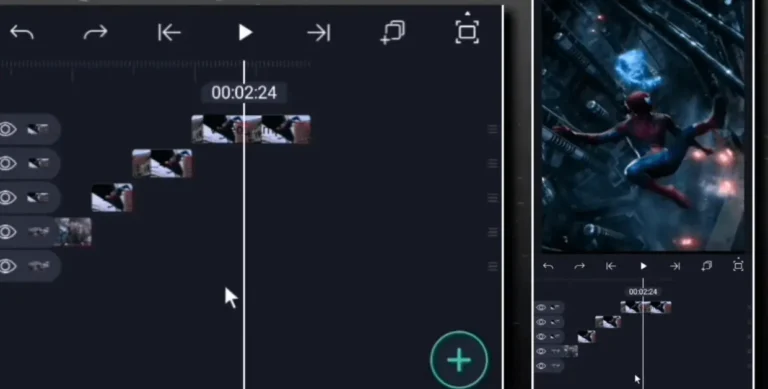
What the application does have is a genuine 3D workspace — Z-axis positioning and Camera Object, along with depth-based layer stacking.
It has full keyframe animation across all three axes. That is real 3D capability. But it works on 2D layers placed in 3D space, not on polygon mesh models rendered in real time.
This page covers what that actually means in practice, what workarounds the community uses, and when you need a different tool entirely.
Alight Motion 3D Model Format Support — Current Status
| File Format | Description | Alight Motion Support |
|---|---|---|
| .OBJ | Most common static 3D model format | ❌ Not supported |
| .FBX | Animated 3D model format (Mixamo, Maya) | ❌ Not supported |
| .GLTF / .GLB | Web-optimized 3D format (Sketchfab) | ❌ Not supported |
| .STL | 3D printing format | ❌ Not supported |
| .DAE | Collada format (Blender export) | ❌ Not supported |
| .PNG / .JPEG (image) | Flat image file | ✅ Supported — works as a 2D layer in 3D space |
| .MP4 / .MOV (video) | Pre-rendered 3D animation as video | ✅ Supported — most-used workaround |
| .GIF | Animated image | ✅ Supported |
Key takeaway: Alight Motion accepts rendered 3D output (video and image), not live 3D model data. This is the distinction every workaround is built around.
Why Alight Motion Doesn’t Support 3D Models
Understanding the reason helps you find the right workaround faster.
Alight Motion is built as a compositing and motion graphics editor — its core strength is layering + effects, and keyframe animation. Rendering 3D polygon meshes in real time requires a dedicated 3D engine (like those in Blender, Cinema 4D, or Unreal Engine).
Adding that to a mobile app would require far more processing power than most Android and iOS devices can deliver smoothly. Alight Motion 3d doesn’t mean a complete 3d app.
The app’s “3D” capability is specifically designed to be lightweight — Z-axis positioning and camera perspective work with flat layers, which is computationally inexpensive and runs smoothly even on mid-range phones.
This is not a missing feature waiting to be added. It is an architectural choice. Alight motion 3d isn’t a weak point; this app is optimized for what it does well. 3D mesh rendering is a different category of software.
Workaround 1: Pre-Render in Blender, Import as Video
This is the most versatile and highest-quality method. It gives you full 3D rendering capability, then brings the output into Alight Motion for compositing, effects, and motion graphics layering.
Step-by-Step Pipeline
Stage 1 — Create or Download Your 3D Model
Free 3D model sources:
- Sketchfab (sketchfab.com) — thousands of free downloadable models in GLB/OBJ format
- TurboSquid — mix of free and paid, high-quality
- Mixamo (mixamo.com) — free rigged and animated characters in FBX format
- Poly Pizza (poly.pizza) — low-poly models, free download
- BlenderKit — integrated inside Blender, a massive free library
Stage 2 — Set Up in Blender (Free)
Blender is free, available on Windows, Mac, and Linux.
- Import your model file: File → Import → (choose your format)
- Position the model and set up lighting
- Add a camera and frame your shot
- Set the animation timeline if the model has animation or you want to add rotation/movement
- Set render output:
- Format: MP4 (H.264 codec) for video, or PNG sequence for frame-by-frame control
- Resolution: 1080×1920 (vertical) or 1920×1080 (horizontal) — match your Alight Motion project
- Frame rate: 30fps to match your Alight Motion project
- Background: Transparent (alpha channel) if you want to composite the model over other footage in Alight Motion — export as PNG sequence with RGBA enabled
Stage 3 — Export the Render
- For a video import into Alight Motion: render as MP4
- For a transparent-background 3D model over custom footage: render as PNG sequence (0001.png, 0002.png, etc.)
Stage 4 — Import Into Alight Motion
For MP4:
- Transfer the file to your phone (USB, Google Drive, Bluetooth)
- In Alight Motion: Add Layer → Image/Video → select your MP4
- The 3D animation plays as a video layer — you can add effects, blend modes, and overlay text on top
For PNG sequence:
- Transfer all frames to your phone in a single folder
- In Alight Motion: Add Layer → Image/Video → select the first frame
- Enable the image sequence option — Alight Motion reads the numbered files as consecutive frames
- The transparent-background 3D render sits cleanly over any background you place behind it
Learn viral editing on mobile using Alight Motion 3d
3D Camera Effect in Alight Motion
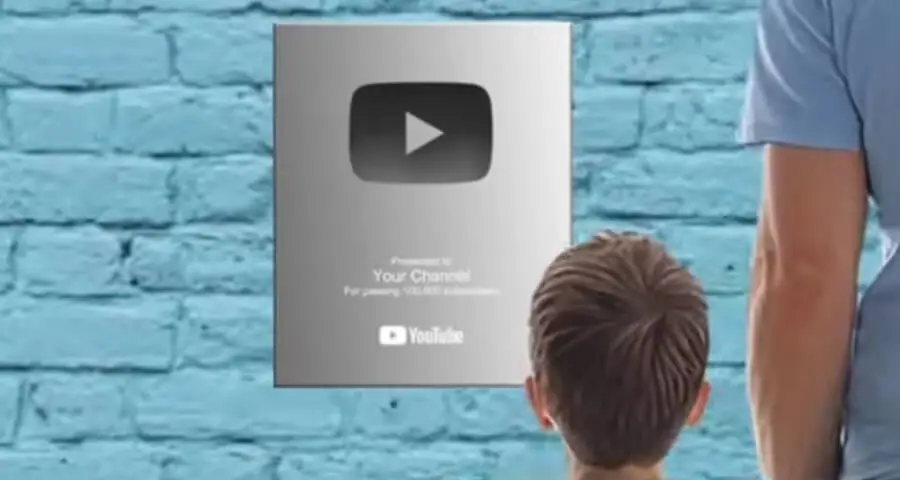
The 3D Camera Effect in Alight Motion adds depth and movement to your edits. It places layers in a 3D space and creates smooth camera motion. Editors use this effect to make videos look more cinematic and engaging.
Key Features:
- Creates depth between foreground and background layers.
- Simulates camera movements like zoom and pan.
- Works well for reels, AMVs, and intros.
- Supports smooth keyframe animations.
What This Pipeline Enables
- Full photorealistic 3D models in Alight Motion compositions
- Animated 3D characters, products, vehicles, and architectural visualizations
- Transparent background renders that composite with real video footage
- Professional-quality output that no mobile-only workflow can match
Limitation: Requires a PC or Mac with Blender installed. Not a mobile-only workflow.
Workaround 2: Use 3D-Rendered PNG Assets (No PC Needed)
If you don’t have access to Blender or a PC, use pre-rendered transparent PNG assets from the community. These are 3D objects that have already been rendered with lighting and shadows, exported as transparent PNGs, and shared as free downloads.
What You Can Find as Pre-Rendered 3D PNGs
- Phones/smartphones (popular for “celular 3D” edits)
- Sneakers and product images
- 3D city buildings and skyline elements
- Characters from games (low-poly and realistic)
- Cars, motorcycles, and vehicles
- Logos and brand marks rendered in 3D
How to Use Them in Alight Motion
- Download the transparent PNG
- Import via Add Layer → Image/Video
- Position in your scene
- The pre-baked shadow and lighting in the PNG create the illusion of a real 3D object in the scene
Limitation: No animation — the PNG is a static frame. You can use alight motion 3d effect smartly. You can animate its position and scale in Alight Motion, but the 3D object itself won’t rotate or move in true 3D. For the neon float and orbital animation techniques using PNG assets, see the 3D logo animation guide.
When to Use This Workflow
| Situation | Use Hybrid? |
|---|---|
| Need a quick 3D text that would take 40 min to build in AM | ✅ Yes |
| Need a trending CapCut 3D template effect | ✅ Yes |
| Need precise control over every animation frame | ❌ No — build in AM |
| Need professional quality for a client project | ❌ No — use Blender pipeline |
| Creating a status video with a 3D visual as one element | ✅ Yes |
3D City in Alight Motion
“3D city” edits are a popular search and a popular visual style — an aerial or street-level city scene with depth, parallax, and motion. There is no city import in alight motion 3d city — this is built from assets.
How 3D City Edits Are Made
Method 1 — Layered city PNG assets Download transparent-background city skyline, building, and street PNGs. Layer them at different Z-positions in Alight Motion. Animate a slow camera pan. The different depth layers create the parallax city feel. For the full parallax technique, see the How to Make 3D guide.
Method 2 — Pre-rendered city footage Download free 3D city flyover footage (search “free 3D city footage” on Pexels or Pixabay). Import as a video layer. Alight Motion handles all overlaid effects, text, and color grading on top.
Method 3 — Blender low-poly city render: Use a free low-poly city model from Sketchfab or Poly Pizza. Render a camera flythrough in Blender. Import the MP4 into Alight Motion. This produces the highest quality result.
Alight Motion 3d or Celular
“Celular 3D” refers to a popular edit style where a smartphone (celular = phone in Portuguese/Spanish — indicating Brazilian and Latin American creator community) appears in 3D, often showing content on its screen.
How to Make a Celular 3D Edit
Step 1 — Get a 3D phone PNG or render. Two options:
- Download a pre-rendered 3D smartphone PNG (transparent background) from free asset sites
- Render your own in Blender using a free phone model from Sketchfab
Step 2 — Import into Alight Motion. Place the phone PNG as a layer. If using a pre-rendered static PNG, position it prominently in your composition.
Step 3 — Add the screen content. Create a mask layer matching the screen shape of the phone PNG. Place your video, image, or animation inside the mask. The content appears to play on the phone screen.
Step 4 — Animate
- Slow rotation on the Y-axis (10–20°) gives a gentle 3D rock that makes the phone feel physical
- Scale entrance (small to full size) with ease-out creates a product-reveal feel
- Drop shadow underneath the phone adds ground contact
This technique is heavily used for app promotions, music video edits, and status content across Brazil, Pakistan, India, and the Philippines.
Alight Motion 3D vs Other Mobile Apps for 3D
| App | 3D Model Import | Built-in 3D | Best For |
|---|---|---|---|
| Alight Motion | ❌ No | ✅ Z-axis, camera, depth | Compositing, motion graphics |
| CapCut | ❌ No | ✅ Limited 3D text/effects | Quick social media edits |
| Prisma 3D | ✅ Yes (OBJ) | ✅ Full 3D modelling | Simple 3D modelling on mobile |
| Blender (PC) | ✅ All formats | ✅ Full 3D render engine | Professional 3D production |
| After Effects (PC) | ✅ OBJ, FBX, GLB | ✅ Cinema 4D integration | Professional compositing |
| Kinemaster | ❌ No | ❌ No | Basic video editing |
My Recommendation: For mobile-only creators who need actual 3D model support, we recommend Prisma 3D as the closest option — it handles OBJ imports and basic animation. Export from Prisma 3D as a video, then import it into Alight Motion for finishing effects.
Summary
Alight Motion 3D model does not import files. That is a firm architectural limit, not a missing feature.
What you can do instead:
- Best quality: Render in Blender → import as MP4 or PNG sequence
- Fastest mobile-only: Use pre-rendered transparent PNG assets
- Trending edits: CapCut 3D template → export → finish in Alight Motion
- Celular 3D / product edits: 3D phone PNG + screen masking technique
- 3D city scenes: Layered city PNGs with parallax, or free city footage from Pexels
For everything Alight Motion’s 3D system does support — camera, depth, parallax, animation — see the full 3D overview and the how to make 3D guide.
Some advanced features, like watermark-free export and the full effects library, need the official Alight Motion Pro membership. You can upgrade inside the app from Google Play or the App Store.
Frequently Asked Questions
No. Alight Motion does not import OBJ or any standard 3D model format. The workaround is to render the OBJ model as a video in Blender, then import the video into Alight Motion.
Not directly. Download the model from Sketchfab (GLB or OBJ format), import it into Blender, render it as MP4 or PNG sequence, then bring that rendered output into Alight Motion.
There is no confirmed announcement from Alight Creative (the developer) as of 2026 regarding native 3D model import. The app’s architecture is built for compositing, not real-time 3D rendering. A significant engine rebuild would be required.
Not directly — CapCut templates run inside CapCut only. The hybrid workflow exports the CapCut 3D render as MP4, which then imports into Alight Motion as a standard video layer.